Share a Scene
Use this guide to share your design scene with colleagues so they can view your design optimization setup and results.
How sharing works
Scenes in deFlex are stored in the cloud and associated with your account. When you share a scene, the recipient gets access to view the full scene -- design domain, preserves, solver settings, and all solver run results. Shared scenes are read-only for viewers.
Steps
1. Open the scene
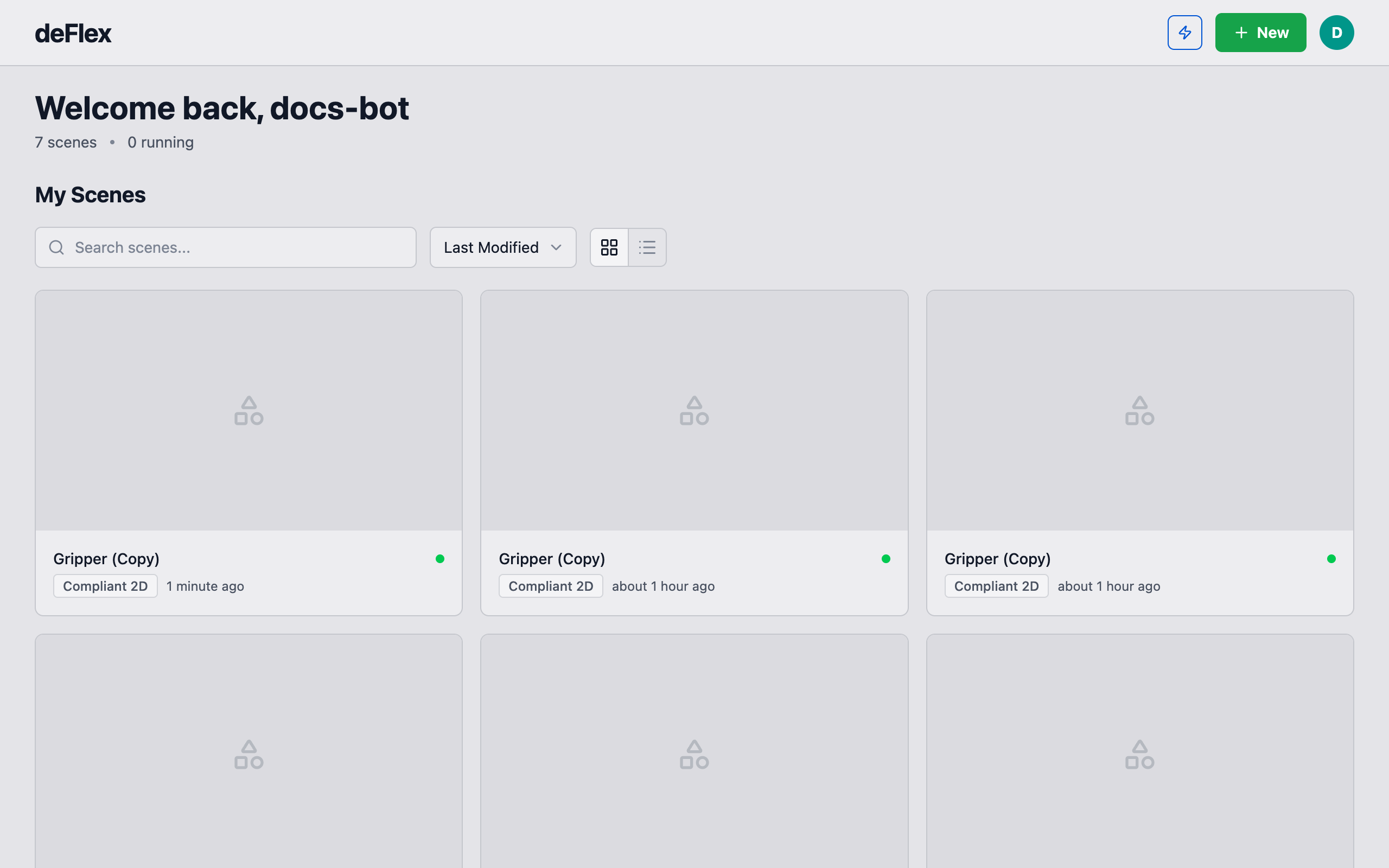
Navigate to the scene you want to share from the home page, or open it in the editor.
2. Access sharing options
Look for the share or collaboration controls in the scene's action menu or top navigation bar. The exact location depends on the current interface, but it is typically near the scene name.
3. Copy the share link
Click the share option to generate a shareable URL. Copy this link and send it to your collaborator via email, chat, or any communication tool.
The link gives the recipient read-only access to the scene. They can:
- View the design domain and all preserves in the 3D viewport
- Inspect solver settings and analysis configuration
- Browse solver run results and convergence plots
- Pan, zoom, and rotate the viewport
They cannot:
- Modify preserves, settings, or the design domain
- Run new solver jobs
- Delete or alter existing solver runs
4. Community sharing (optional)
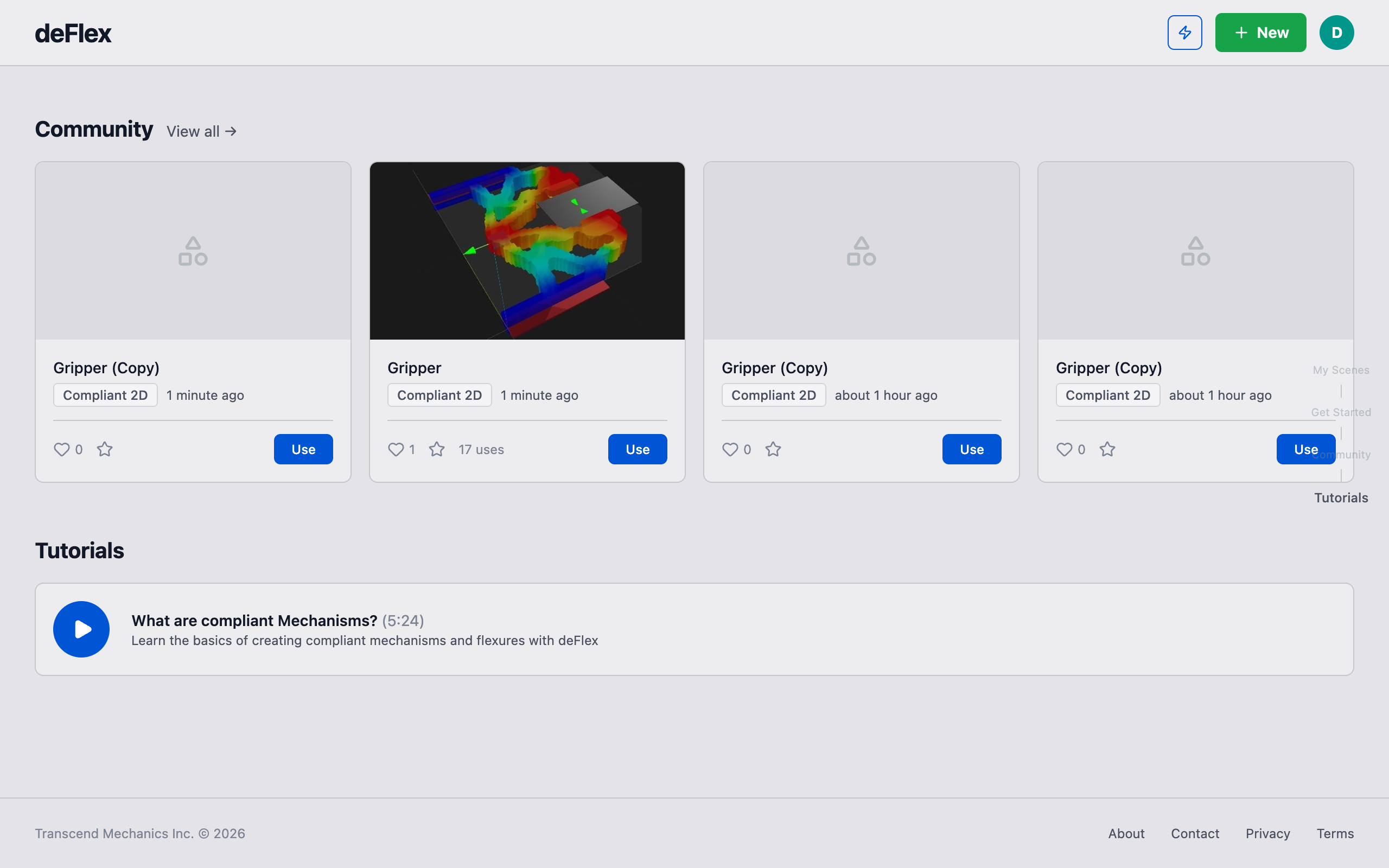
If you want to share your scene publicly for others to learn from, you can publish it to the deFlex community gallery. Published scenes are visible to all deFlex users and can serve as templates or reference designs.
Tips
- Read-only access: Shared scenes are always read-only for recipients. If a collaborator needs to modify the design, they should create their own scene and replicate the setup, or you can coordinate changes on your end.
- Account required: Recipients need a deFlex account to view shared scenes. The link will prompt them to sign in if they are not already authenticated.
- Scene snapshots: Sharing gives access to the current state of the scene. If you make changes after sharing, the recipient sees the updated version the next time they open the link.
- Solver run history: All solver runs are included in the shared view. This is useful for design reviews where you want to show how different parameter choices affected the result.
What to do next
- Export results if you need to send files rather than a live link
- Create a new scene to start a new design project