Creating an Account
deFlex uses account-based access. You need to create an account before you can use the application.
Signing up
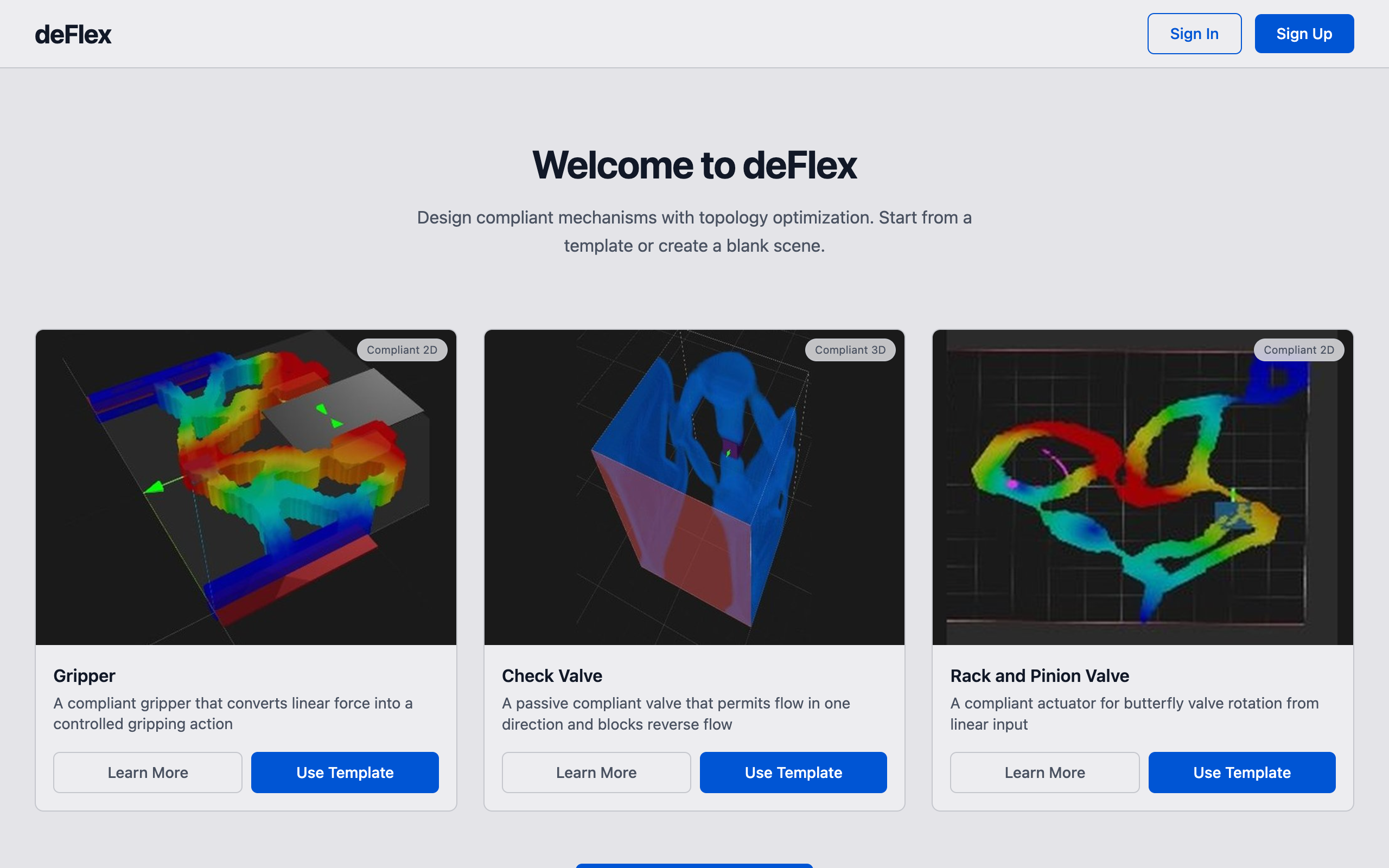
deFlex uses Google sign-in for authentication. No separate email/password account is needed.
- Navigate to the deFlex application URL in your browser.
- Click Sign in with Google.
- Authenticate through your Google account via the OAuth flow.
- You are redirected back to deFlex, signed in and ready to use the application.
Signing in
After your initial sign-in, returning to deFlex will show the sign-in page. Click Sign in with Google to authenticate. Your session persists across browser tabs.
Your workspace
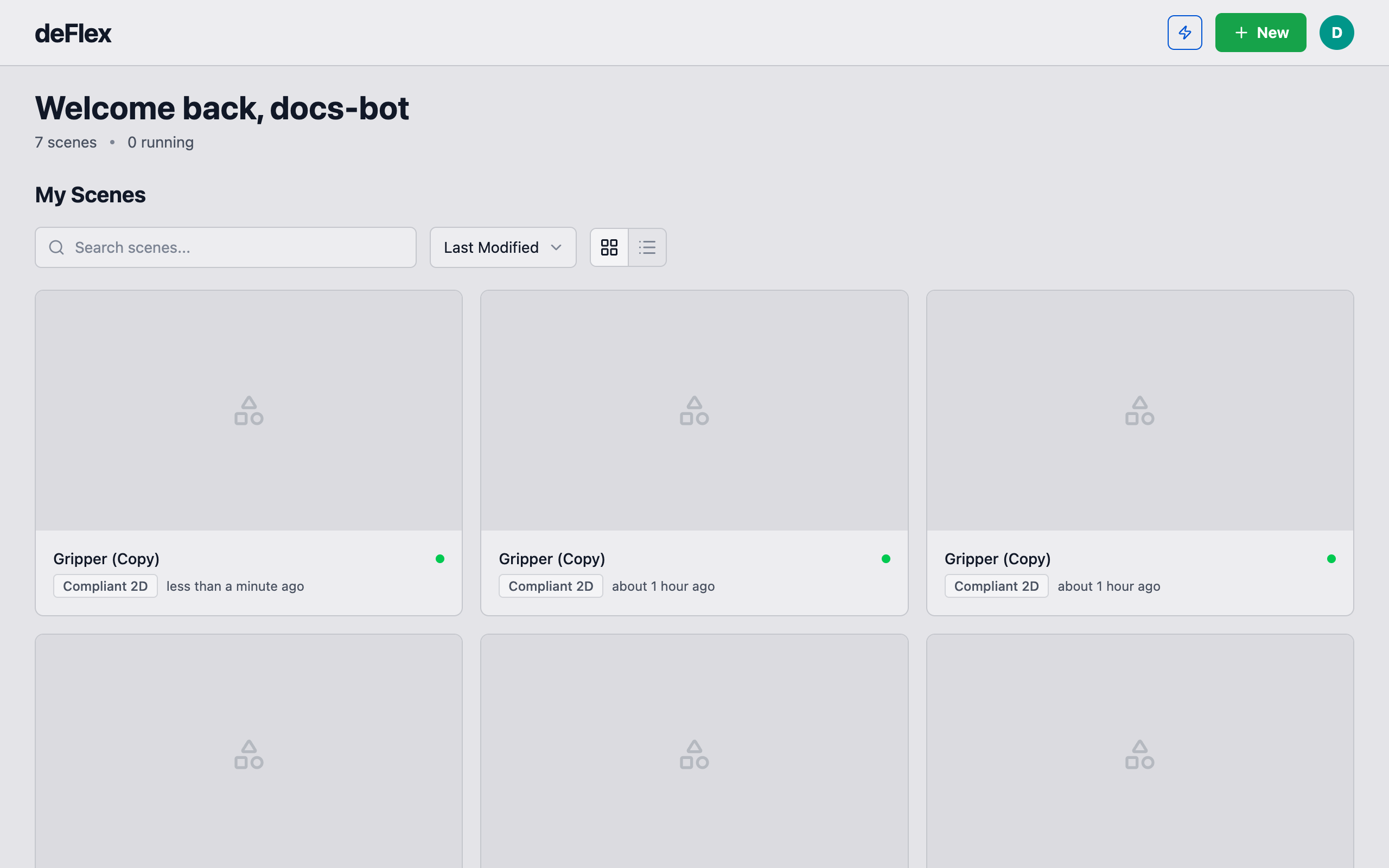
After signing in, you land on the workspace — the central hub where all your projects and scenes live.
Scenes
Your work in deFlex is organized into scenes. Each scene is a single design problem: one geometry, one set of preserves and boundary conditions, one solver configuration. Scenes are displayed as a flat list on the home page.
From the home page you can:
- Create a new scene -- click the + New button to start a new design.
- Open a scene -- click on any scene card to open it in the editor.
- Manage scenes -- click the three-dot menu on a scene card for options including Open, Rename, Duplicate, Make Public/Private, and Delete.
Account settings
Access your account settings from the avatar menu in the top-right corner of the workspace. From here you can:
- Update your display name
- Change your password
- Sign out
Use descriptive scene names. As your work grows, names like "thermal-flexure-300mm-v3" are far more useful than "Untitled."